

Getting started
- Open app.ripworth.com in Chrome or Edge (on iPhone: Safari) – on a computer, tablet or phone. There is nothing to install and no account to create.
- Open the app in Chrome or Edge, on a computer, tablet or phone. On the computer where RipWorth is installed, the address is http://localhost:5177. If the shop's app runs on a server on the internet, use that server's address.
- When the browser asks for camera access, click Allow. The camera is only needed for in-app photos and Live mode.
- At the top of the page choose a game, e.g. Pokémon, or leave All games. Choosing a single game speeds up recognition and reduces the risk of a mistake.
- Take a photo of the card. After a moment you will see its name, version and value.
On a phone, add the app to your home screen: in Chrome use the menu ⋮ → Add to Home screen (iPhone: Share → Add to Home Screen). It then opens like a normal app – with an icon, full screen, without the browser bar. In Chrome and Edge you can also use the 📲 Install the app button in Settings. The installed app has shortcuts (long-press the icon: Scan a card, Session, Live) and appears in the Share menu – a card photo from the gallery or camera shared to RipWorth is scanned straight away. Without internet the app still opens and tells you that recognition and prices need a connection.
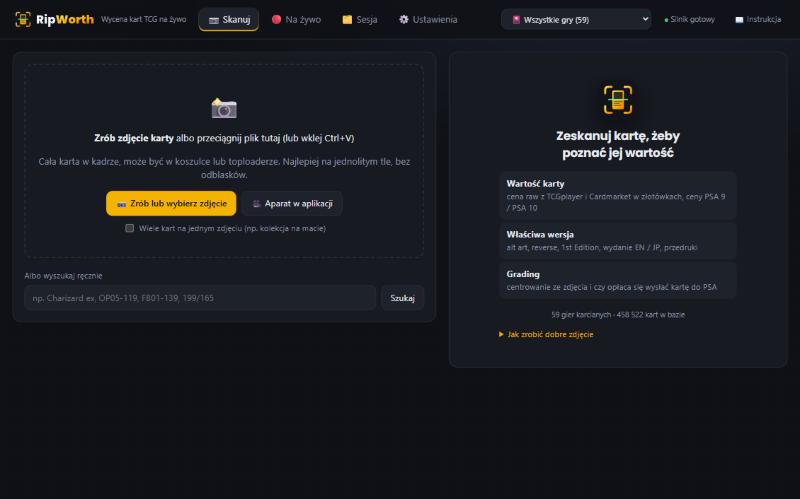
Scanning a photo
In the Scan tab you have several ways to provide a photo:
- Take or choose a photo: opens the camera on a phone, a file picker on a computer.
- In-app camera: on a phone or tablet it opens the device camera straight away (full photo quality, autofocus). On a computer it shows the webcam preview with a card-shaped frame – place the card in the frame and click Take photo.
- Drag an image file onto the area or paste an image with Ctrl+V.
The app finds the card in the photo by itself, straightens it and compares it with the whole database. The steps appear below the photo, ending with “Recognised: …”.
How to take a good photo
- The whole card in frame, ideally on a plain background (a sheet of paper, a playmat).
- No strong glare. With holo cards, tilt the card slightly until the glare disappears.
- The card can be in a sleeve or toploader and does not have to lie perfectly straight.
- One card per photo – unless you switch on multi-card mode (see below).
Several printings of the same card
Some cards have been printed many times with the same artwork – e.g. Charizard 4/102 appears in Base Set, Base Set Shadowless, Celebrations, Trading Card Game Classic and 30th Celebration. The printings differ in small details: a stamp (e.g. a “30” with Pikachu ears), the border colour, the symbol and the number in the corner. The app compares exactly these spots. When the difference is clear in the photo, it picks the printing itself; when it is not, it shows the printings side by side with prices and asks you to choose with one click. It will never present the price of a different printing as certain.
Below the list of printings you will see a close-up of the spot where the printings differ – e.g. the “30” stamp – next to the same area from your photo. Compare them and click the crop of the correct printing.
Sealed products (boosters, boxes, ETBs)
Type the product name with a word like “booster”, “box”, “display”, “ETB”, “bundle”, “blister” or “tin” – e.g. “Obsidian Flames booster box”, “OP05 display”, “151 ETB” – or scan the barcode on the packaging. A barcode scanner connected to the computer works straight away: just scan the code while the app is open. On a phone (Chrome, Edge, Safari 17+) the ▦ Barcode button next to the search scans the code with the camera. The price is the TCGplayer market price, with a history chart; the product can be added to the session, buy-in and labels like a card. Several products can share one code (e.g. blisters with different cards) – pick the right one from the list.
Card in a slab (PSA, BGS, CGC, SGC)
Take a photo of the whole slab including the label. The app recognises the card and reads the company and grade from the label, e.g. “PSA 10 (GEM MT)”. If the label is not read or is read wrongly, choose the company and grade manually in the Slabbed card field below the prices. A slabbed card is valued at the price of that grade (PSA, BGS, CGC and SGC 10 separately; grades 7–9.5 shared across companies) – in the session, buy-in, labels and the remote. Graded prices come from PriceCharting (token in the setup wizard). Without them a slabbed card goes into the buy-in as “to be valued” – never with the price of the ungraded card; next to it there is a link to sold slabs of that grade on eBay. Slabbed cards are not added to the Cardmarket listing file.
Several cards in one photo
When buying a collection, tick Several cards in one photo below the buttons and take a single photo, e.g. of 9 cards laid out on a mat. The app numbers the cards in the photo, recognises each one and shows a list with prices and a total. Click the cards marked “check” (uncertain, or with several printings the photo cannot tell apart) and confirm the version. + Add certain matches to session adds the cards recognised with certainty. The cards should lie separately, not overlapping.
Reading the result
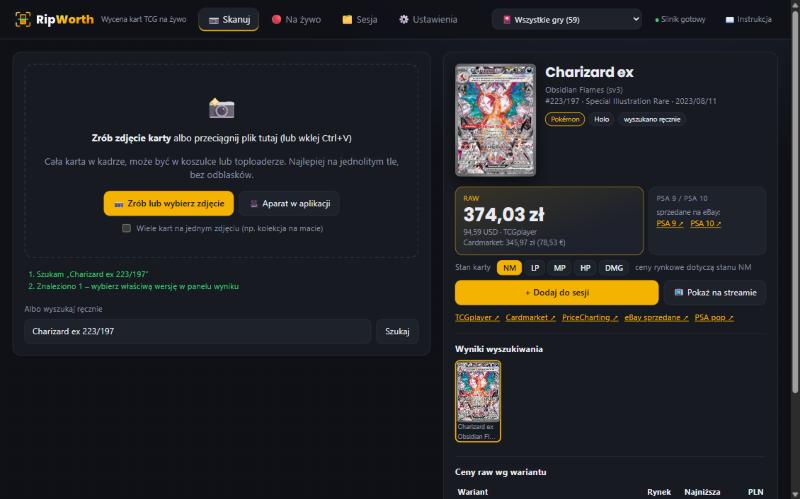
| Element | What it means |
|---|---|
| RAW (large price) | Value of the ungraded card, in złoty (or your chosen currency). Below it, the source price in USD from TCGplayer and the Cardmarket price in EUR. |
| PSA 9 / PSA 10 | Value of the card after grading. Without a PriceCharting key the app shows links to sold eBay listings. |
| Confidence | How sure the app is of the match. With an uncertain result you see the message “Uncertain match – check the card” and a list of similar cards to choose from. |
| Other versions | The same card in other versions: alt art, reverse, 1st Edition, EN / JP printing, reprints. Click a version to see its price. |
| Raw prices by variant | A table of prices for all variants (e.g. Holo, Reverse Holo): market price, lowest listing and the amount converted to złoty (or your chosen currency). |
| We buy for / Shop price | If the shop has set buy and sell percentages in the panel, the app immediately calculates how much to pay for the card and what to sell it for. |
| Price history | Chart of the TCGplayer market price: 3 months, a year or everything (since February 2024). The arrow shows the change in the selected period; hover over (or touch) the chart to see the price on a given day. Weekly points, daily for the last 4 months. |
| Card condition | NM / LP / MP / HP / DMG buttons. Market prices refer to Near Mint condition; for a worse condition the app shows an estimate based on typical market ratios (e.g. LP ≈ 85%, HP ≈ 50%) and uses it for buying and for the session. |
| ▲ / ▼ next to Cardmarket | Trend: the average price over the last 7 days compared with 30 days. It is shown when the change is at least 5%. Below the prices there is also a line “sales average: 30 days → 7 days”. |
| Worth grading? | Centring measured from the photo, the chance of PSA 9 / 10 and whether grading pays off after costs. You set the costs in the Settings tab. For cards with a solid-colour border the app also checks for light whitening on corners and edges – a hint to inspect the card (glare in the photo can look similar). |
| No price | A rare version (tournament prize, numbered) or a card before its release – TCGplayer and Cardmarket do not list it. The “sold on eBay” link leads to recent sales. |
Buttons below the price:
- + Add to session: adds the card to the list in the Session tab.
- 📺 Show on stream: sends the card with its price to the OBS overlay.
- The TCGplayer, Cardmarket, PriceCharting, eBay sold, PSA pop links open the card on those sites.
Manual search
The Or search manually box below the photo accepts a card name, a number or both. Examples – click to open the result in the app:
- Charizard ex 223/197 (Pokémon)
- OP05-119 (One Piece)
- FB01-139 (Dragon Ball Fusion World)
- LOB-EN001 (Yu-Gi-Oh!)
- FB11 (a whole set – just the set code)
- charizrd 4/102 (a typo in the name is fine)
Click Search or press Enter. If several cards match, choose the correct version in the result panel.
Live mode
The 🔴 Live tab recognises cards from video in real time, e.g. while opening boosters on stream.
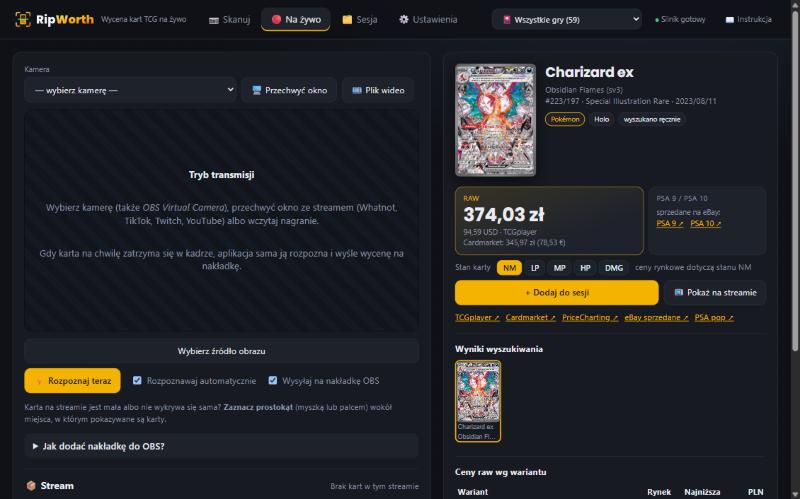
- Choose the video source: a camera from the list (including OBS Virtual Camera), 🖥️ Capture window (a window or a browser tab with the stream: Whatnot, TikTok, Twitch, YouTube) or 🎞️ Video file.
- Show the card and hold it still for a moment (about half a second). The app recognises it by itself, adds it to the session and, if ticked, sends it to the overlay. This usually takes 1 to 1.5 seconds.
- Show the next card. The same card lying in the same place is not sent again.
Options
- Recognise automatically: recognises every card held still in the frame.
- Send to OBS overlay: a recognised card goes on air immediately.
- ⚡ Recognise now: forces recognition of the current frame (with more thorough text reading).
- Draw a rectangle with the mouse or your finger on the preview when the card on the stream is small. The app will then look for the card only in that area. ✕ Clear selected area removes the selection.
Reel on your phone
The 🎬 Reel button in the Scan tab (or app.ripworth.com/rolka.html) opens a mode for recording reels on your phone: show cards to the camera and the name, price and growing collection value appear on screen right away, with HIT / BIG HIT / MEGA HIT effects.
- Turn on the camera and hold the phone upright. The button bar hides after a moment so it stays out of the recording; tap the screen to bring it back.
- Start screen recording on your phone (iPhone: Control Centre, Android: Quick Settings). Prices and the counter are recorded together with the camera image.
- Show the cards one after another – each recognised card is added to the total. The same card shown again within a minute is not counted twice; ↶ Undo removes the last one.
- 🏁 Finish shows a summary. The cards are also in the 🗂️ Session tab – with CSV export, collection valuation and labels.
In the reel ⚙️ Settings: currency, panel style (classic, neon, light), hit effects, value counter, the RipWorth mark in the corner (always shown in the demo) and the front camera.
OBS overlay full version
The overlay shows viewers the recognised card with its price, the shop's logo and details.
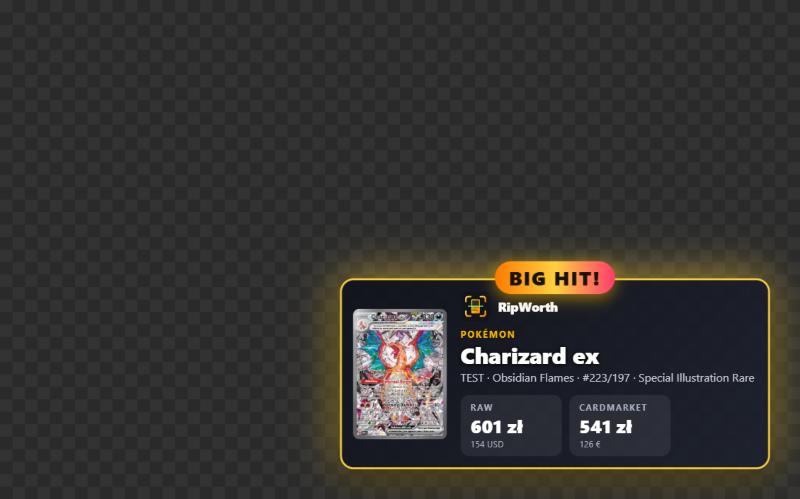
- In OBS click Sources → + → Browser.
- Enter the overlay address: the app address + /overlay.html, e.g. http://localhost:5177/overlay.html.
- Set the width to 1920 and the height to 1080. The background is transparent.
- In the Live tab expand How do I add the overlay to OBS? and click Send a test card to the overlay to check that it works.
Address options
| Add to the address | What it changes |
|---|---|
?pos=br | Screen corner: br bottom right, bl bottom left, tr top right, tl top left. |
&hold=12 | How many seconds the card stays visible. |
&cur=PLN | Currency on the overlay: PLN, USD or EUR. |
&sound=0 | Turns off sounds in this overlay only. |
&vol=0.5 | Volume of this overlay (0–1), independent of the panel setting. |
&hits=0 | Turns off hit effects in this overlay only. |
Example: http://localhost:5177/overlay.html?pos=bl&hold=8&cur=PLN
Hits and sound
When a recognised card is worth at least a set amount, the overlay celebrates together with the viewers:
| Level | Default from | What you see and hear |
|---|---|---|
| HIT! | 100 zł | A pulsing gold frame, a “HIT!” badge, confetti and the price counting up from zero. A bell sound. |
| BIG HIT! | 500 zł | On top of that, sparks around the panel and a shine sweeping across the card. A “whoosh” sound and a chord. The card stays on screen 1.5× longer. |
| MEGA HIT! | 2000 zł | The card first appears in the centre of the screen with light rays and golden rain, then moves to the corner. A drum roll and a fanfare. The card stays 2× longer. |
Thresholds, captions, sound, volume, the overlay theme (classic, neon, minimalist) and the shop's own sounds (MP3 / OGG / WAV for each level – e.g. the shop jingle for a MEGA HIT) are set in Shop panel → Hits and sound on stream. There you will also find the ▶ Test: HIT, ▶ Test: BIG HIT and ▶ Test: MEGA HIT buttons. For ordinary cards the overlay only plays a short recognition sound (it can be turned off).
Running a stream full version
In the 🔴 Live tab, below the overlay, there is the 📦 Stream panel. Every card shown on the overlay goes into the stream log with its value.
| Feature | How to use it |
|---|---|
| Break / box | Enter a name (e.g. “OP17 Booster Box”) and the cost in zł, then click ▶ Start break. The counter adds up the value of the cards pulled and shows the result: in profit or at a loss. |
| Card for a viewer | Enter a viewer's nickname (e.g. for team breaks). The next cards on the overlay carry the note “🎁 for @nick”, and the report totals the value for each viewer. |
| ↶ Undo last | Removes a card shown by mistake from the log. |
| 🎯 Guessing game | Viewers have 30 s to type !guess 250 in the Twitch chat (!cena 250 works too; a guess can be changed until time is up). The next card shown on the overlay decides the round: the closest guess wins, on a tie the earlier one. The overlay shows the winner and the stream ranking (🥇🥈🥉 – number of wins), the stream panel the top 5 viewers, and the stream report the full ranking and list of rounds. Guesses are collected by the app on the server, so several open overlays show the same. Requires the Twitch channel name in the shop panel. |
| 📄 Stream report | A summary: number of cards, total value, hits, best pulls, break results, viewers and the full list. For printing / PDF or as CSV. Previous streams are in the report archive. |
| 📸 Graphic | A ready graphic with the 5 best pulls of the stream (card images and prices), number of cards, total value, your logo and website – in two formats: post 1080×1350 (Instagram, Facebook) and vertical 1080×1920 (Stories, TikTok). With a single break its name is the title. Download a PNG or share it straight from your phone. Also works for archived streams in the report. |
| 🆕 New stream | Starts the log from scratch; the previous stream goes into the report archive. |
Stats overlay
A second “Browser” source in OBS with the address http://localhost:5177/overlay-stats.html (the address can also be copied from the panel) shows the break counter and a table of the best pulls, updated live. Options: ?show=break or ?show=top (one element only), &pos=tr (corner), &n=5 (how many cards in the table).
📱 Phone remote
In the stream panel expand Phone remote and scan the QR code with your phone. On the phone you see the current card with its price and its versions: a tap selects a version, and large buttons show the card on stream, add it to the session, undo the last one, start the guessing game or trigger HIT / BIG / MEGA manually. The phone connects with a pairing code – without it, nobody can control your stream.
🎬 Hit clip (OBS)
On a hit, the overlay can automatically save the last few seconds of footage from the OBS replay buffer – ready-made material for TikTok or Reels.
- In OBS: Settings → Output → Replay Buffer – enable it and set the length (e.g. 30 s).
- In OBS: Tools → WebSocket Server Settings – enable the server, note the port and password.
- Add
&obs=PASSWORDto the overlay address (plus&obsport=4455if the port is different, and&clip=2– the hit level from which to save clips, BIG HIT by default).
The password stays only in the source settings in OBS – it is not sent to the app or to the server.
Session and export
The 🗂️ Session tab collects cards from streams and scans, with their total value. Useful when valuing a whole collection at the counter or summing up a stream.
- ⬇ CSV saves the list to a file you can open in Excel or Google Sheets (name, set, number, prices).
- 📄 Collection valuation prints (or saves as PDF) a valuation of all cards in the session for the customer – e.g. for insurance, selling the collection or an estate: total market value, totals by game, the most valuable cards with thumbnails and the full list with condition, quantity and price (identical cards combined into one line), followed by price sources, date, exchange rate and space for a signature. Slabbed cards carry the price of their grade, and cards without a price are clearly marked.
- 🏷️ Labels prints price stickers for the cards in the session: name, set, number, condition, language and price – the “Shop price” from the shop panel (e.g. 110% of value), or the market value if it is not set. Rounding to whole units (cards under 1 keep cents), ending .99 or no rounding. Formats: an A4 sheet with 21 stickers (3×7, 63.5×38.1 mm) or 24 stickers (3×8, 70×37 mm) – you can start at any sticker on a partly used sheet – and a single 62×29 mm label for Brother QL and Dymo label printers. When the app has an internet address, the label can carry a QR code to the card’s current price. In the buy-in register, the 🏷️ button prints labels for the cards from that buy-in. In the print dialog set the scale to 100% (no “fit to page”).
- ⬇ Cardmarket saves the list for listing the cards on Cardmarket: Cardmarket product number, quantity, condition on the Cardmarket scale (NM, EX, GD…), language and a suggested price (Cardmarket trend adjusted for condition). Cards without a Cardmarket match are at the end of the file with a note – list those manually. Cardmarket does not accept an offers file directly (listing is done with the “Bulk Listing” form), so the file uses the format of tools that list cards for you: TCG PowerTools (matches cards by Cardmarket product number) and the free Cardmarket Bulk Import browser extension (fills in the Bulk Listing form). In the buy-in register, the ⬇ Cardmarket button next to a buy-in gives this list straight away for the cards from that buy-in (without bulk).
- Buy-in mode (when “We buy for” is enabled in the shop panel): every card shows its buy-in price according to the shop rules. You can change the price (type an amount) or click 🚫 – the card goes back to the customer. Above the list you see the buy-in total (and the store credit amount if the shop gives a bonus), the payment method and notes. 🧾 Preview receipt shows the receipt for printing, and ✅ Complete buy-in saves the buy-in to the register with a number (e.g. SK/2026/0001), prints the receipt with space for the seller’s details and signature, and clears the session. 📒 Buy-in register lists recent buy-ins (reprint, cancel) and downloads the whole register as CSV for accounting. 📈 Price changes lists cards from buy-ins of the last 90 days whose TCGplayer price has changed by at least 15% since the buy-in – a hint on what to reprice or list sooner. On an internet server the register is unlocked with the shop panel password, just like stream control. In the demo version only the receipt preview works.
- Clear starts a new session.
Settings
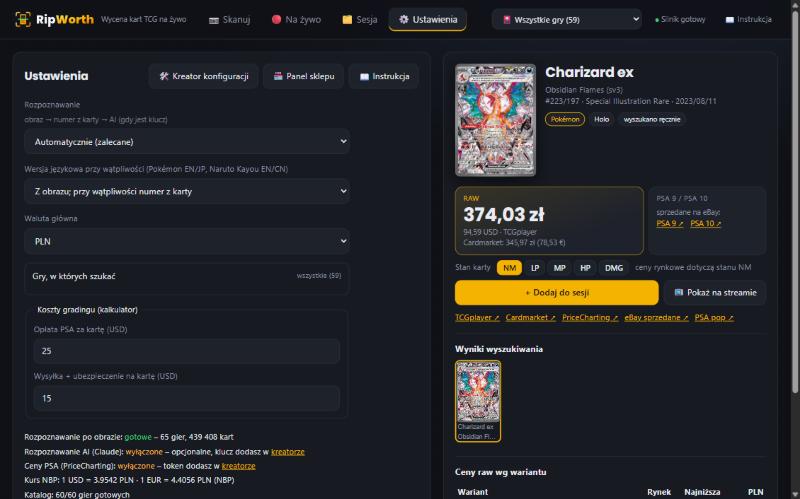
| Setting | When to change it |
|---|---|
| Recognition | Automatic (recommended): image, then card number, and AI when in doubt. Without AI: everything runs locally and free of charge. Always AI: for difficult cases; it is slower and paid. In the demo AI is disabled – photos are not sent to external services. |
| Language version when in doubt | When the shop mostly has English or Japanese cards (Pokémon EN/JP, Naruto Kayou EN/CN). It settles cases where the image is identical in both languages. |
| Main currency | PLN, USD or EUR as the large price in the result. |
| Games to search | Tick only the games you trade in. Recognition will be faster and more reliable. |
| Grading costs | The PSA fee and shipping per card. Based on these, the calculator tells you whether grading pays off. |
Shop panel full version
In the demo the shop panel is disabled – the logo and shop details are RipWorth's. Below is a description of what you can set in the full version.
You open the panel from the Settings tab with the Shop panel button. It requires the administrator password set during the initial setup.
- Look and brand: logo, shop name, subtitle and accent colour (buttons, frames, overlay).
- Contact: website, phone number and address in the footer and on the overlay.
- Advertising on stream: rotating slogans (e.g. “-10% with code STREAM”), a QR code on the card panel and the shop badge in the corner of the screen when no card is being shown.
- Shop prices: percentage of market value for “We buy for” (e.g. 60%) and “Shop price” (e.g. 110%), plus a minimum buying price for a single card (e.g. 0.50 zł). For buy-in mode: a different percentage for cheap and expensive cards (e.g. below 20 zł – 40%, from 500 zł – 75%), bulk at a fixed price per card (e.g. cards below 1 zł for 0.05 zł or not at all), a store credit bonus (e.g. +10%), the currency of these amounts (PLN, EUR or USD – the same on every shop computer) and your own seller declaration on the receipt. They are shown with every card, on stream and in buy-in mode.
- Custom catalogues: cards outside the main database (e.g. sports cards, local cards). Built-in catalogues of Kayou cards – Naruto and My Little Pony (Friendship Eternal, TCG) – are ready: recognised by image, the number is the rarity and position in the series because Kayou publishes no numbers. You add your own cards with a photo or a CSV list and they are recognised immediately. The shop sets the price (or eBay offers with an eBay key).
- Card catalogue: the database refreshes itself once a day. On release day you can click Refresh catalogue now.
Keys for external services (AI, PSA prices, eBay, SportsCardsPro) are entered in the Setup wizard. They are stored only on the shop's server, and the browser shows only their last characters.
Where prices come from
| Source | What it provides | Games |
|---|---|---|
| TCGplayer | Market price, lowest listing and variants, in USD. Updated daily. | All games in the database |
| Cardmarket | Trend, 30-day average and lowest listing, in EUR. Updated daily. Cardmarket calculates them from sales in all languages (English, French, German…), so for English cards it can be lower – you can check the exact price for a language on Cardmarket with the language filter. | Pokémon EN and JP, One Piece, Magic: The Gathering, Yu-Gi-Oh!, Riftbound |
| PriceCharting | PSA 7–10, CGC 10, BGS 10 prices (requires a key). | TCG games |
| SportsCardsPro, eBay | Prices from sales and current listings. | Sports cards, Naruto Kayou, My Little Pony Kayou (eBay listings with the shop’s eBay key) |
| NBP | Current USD and EUR exchange rates for converting to złoty (or your chosen currency). | All |
Labels next to prices
- “from X”: the card has had no recent sales, so we show the lowest listing. A single listing with a prohibitive price (e.g. $10,000 for a common card) is not shown.
- “30-day average” next to Cardmarket: the trend suddenly shot up after a few unusual sales, so we show the more stable average.
- “≈”: an approximate value, from a small number of sales or listings. The source and amount of data are shown next to it.
- “estimate”: a value based on the card's rarity when there are no sales at all. It is shown only in the app, not on stream.
- 🗓 Release: a card before its release. The price comes from individual pre-order listings.
- 🆕 New: a set released in the last 30 days. Prices may still change a lot.
Cards from new sets appear in the database when TCGplayer adds them, usually already during pre-orders.
Test version (demo) and full version
The test version at app.ripworth.com works the same as the shop version: scanning, Live mode, prices and sessions. Differences:
- The shop panel and the setup wizard are disabled. The logo and shop details are RipWorth's.
- The app does not learn from corrections and does not use AI.
- There is a limit on recognitions per minute from one address. With very fast scanning you may see the message “Too many requests – try again in a minute”.
- Sending cards to the OBS overlay and the stream panel (break, guessing game, remote, report) are disabled – they work in the full version and in the 14-day trial.
- The test version records anonymous recognition statistics (which card it suggested, with what confidence and whether a different card was chosen from the list) – without photos and without IP addresses – so that we know which cards to improve.
How to get the full version
- Go to ripworth.com/en/start.html, choose a plan (Collector – unlimited price checks, Stream – OBS overlay, Shop – buy-in and labels, Shop + Stream – everything) and enter your e-mail.
- Click the link in the e-mail – you immediately get a licence key and the installer.
- Install RipWorth on the shop computer and open http://localhost:5177. The setup wizard will guide you through setting the password and shop details. Or without installing: sign in with your key at app.ripworth.com – the full version in the browser, also on a phone.
The first 14 days are free, with no payment card. After that you decide whether to pay for a subscription – we never charge anything automatically. Updates install themselves when the app starts.
Problems and questions
- The camera does not work or is not on the list.
- Check that the browser has permission to use the camera (padlock icon next to the address). The camera only works on a page served over https:// or on localhost. Close other programs that may be using it (Zoom, Teams, OBS with the same camera).
- The card was not recognised.
- Take the photo again: the whole card, no glare, on a plain background. Choose the game at the top of the page. If that still does not help, type the name or number into the search box. Very new cards may not yet have an image in the database, and then the number helps.
- The app chose the wrong version of the card.
- Click the correct version below the result – the app will remember that photo as a reference. It recognises versions from the image: border colour (e.g. the gold and silver Magikarp from Classic Collection), stamps and marks (Prerelease, Staff, 30th Celebration, set logo), EN / JP printing, and for reprints of the same artwork from different sets it compares the spots where they differ. Versions the photo cannot tell apart (e.g. 1st Edition, Shadowless, Black Dot) are flagged with a warning and the app shows prices for all of them. The best photo for telling versions apart: the card out of its sleeve, no glare, the whole bottom strip with the number visible.
- There is no Cardmarket price.
- Cardmarket is available for Pokémon (EN and JP), One Piece, Magic: The Gathering, Yu-Gi-Oh! and Riftbound. If the versions cannot be matched reliably, the app would rather show no price than the price of a different version.
- The first recognition takes longer.
- The first scan takes longer because the browser loads the image-processing tools; the card text is read by the server. Subsequent cards take about a second.
- The card on the stream is small and is not detected.
- In Live mode, draw a rectangle with the mouse over the area where the cards are shown.
- The overlay in OBS shows nothing.
- In the demo this is normal – sending cards to the overlay only works in the full version. Check the browser source address and click “Send a test card to the overlay”. After changing the address, click “Refresh cache of current page” in OBS.
- Can I download the app to my computer?
- Yes – you get the full version with an installer after signing up at ripworth.com/en/start.html (14 days free, details in the Demo and full version section). Without installing: sign in with your key at app.ripworth.com – the full version in the browser, also on a phone. On a phone you can add the demo to your home screen – it then works like an app.
- The message “Too many requests – try again in a minute”.
- The demo has a limit on recognitions per minute from one address so that the server works for everyone. Wait a minute. In the full version the limit applies only to your shop and is much higher.